

If you’ve picked up the PocketBook Verse Pro, you’ve probably noticed that the stock reading app works… but not as smoothly as it could. Highlighting can feel clunky, dictionary lookups take longer than they should, and large files sometimes lag. I recently moved from the Kindle to the PocketBook sphere, and I love the customization and the fact that I can control my data as well as drag and drop eBook files (unlike on Kindle).
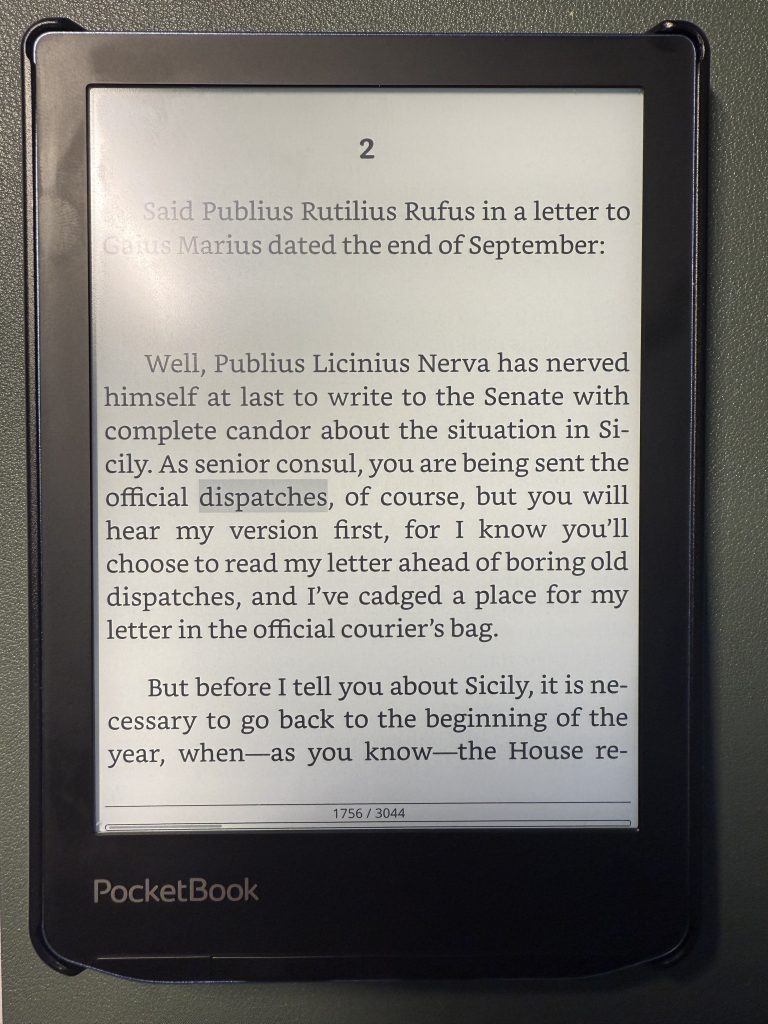
That’s where KOReader comes in. This open-source reading app is fast, lightweight, and packed with features that make PocketBook devices far more enjoyable to use. With KOReader, you get:
- Quicker highlighting – This was huge for me. The highlighting interface with the stock PB reader…sucks.
- Instant dictionary lookups – tap a word and get your answer immediately. Same thing here: the stock PB reader is terrible with dictionary lookup.
- Better performance overall – KOReader handles large EPUBs, PDFs, and DjVus much faster than the stock app. The app is so much more responsive.
- More customization – font choices, themes, gestures, and file management are all miles ahead of the built-in reader. The features felt overwhelming to me at first, but the KOReader community has a wonderful user guide.
In my opinion, KOReader is essential for the Verse Pro (and most PocketBook models). I found some of the online guides on how to install KOReader on the PB confusing. Here’s how to install it in 2025.
Step 1. Download KOReader
Head to the official GitHub page:
???? KOReader installation guide for PocketBook
From there, grab the latest release. Most newer PocketBook devices (including the Verse Pro) run Linux, so you’ll want the Linux build. The download will be a .zip file.

Unzip it on your computer and you’ll see two folders:
applicationssystem

Step 2. Copy Files to Your PocketBook
- Plug your Verse Pro into your computer with a USB cable.
- Open the drive that appears (this is the device’s root directory).
- Copy both the
applicationsandsystemfolders into that root directory. - When copying the folders, merge them with the existing files—do not overwrite anything already on your device. You’re only adding KOReader’s files. For more control, you can open each folder and drag only its contents into the corresponding location in your PocketBook’s root directory.
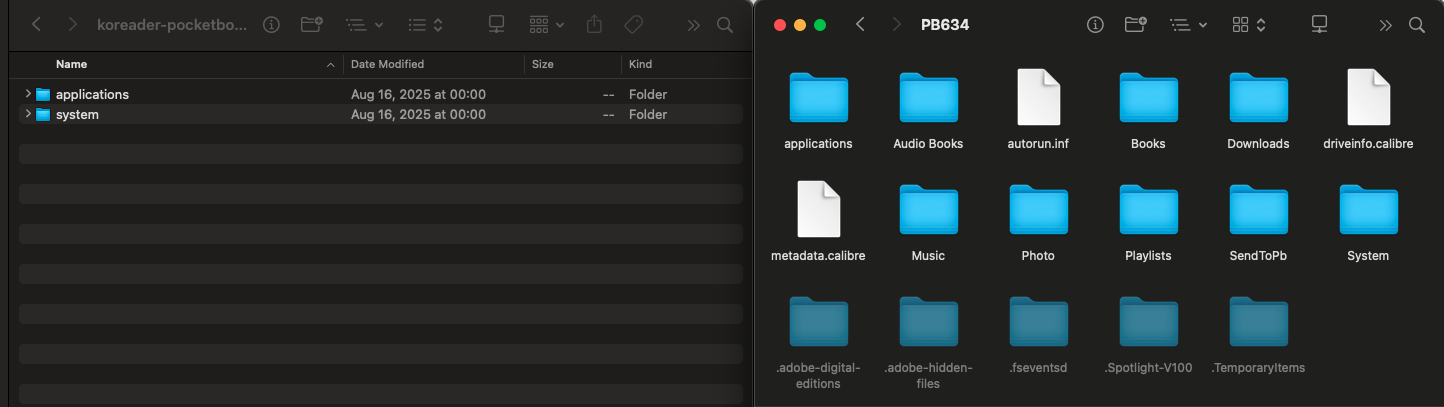
That’s it—the files are now in place.
???? Tip: Can’t see the system or applications folders?
Some PocketBook folders are hidden by default. Here’s how to reveal them:
- macOS: In Finder, press Command + Shift + . (period) to toggle hidden files.
- Windows: In File Explorer, go to View → Show → Hidden items (Win 11) or View → Hidden items (Win 10). Hidden folders will appear slightly transparent.
Step 3. Launch KOReader
Unplug your device, then look for the KOReader icon in your app list. Mine was at the bottom, and at first, I thought that the install didn’t work. It can be confusing, but trust the process. Tap the icon to launch.
Optional: Make KOReader Your Default Reader
If you’d like books to open directly in KOReader instead of the stock app:
- Open KOReader.
- Tap the main menu.
- Go to Gear → Device → Associate file extensions.
- Choose the formats you want KOReader to handle.
Tip: Don’t select .svg or .log: That will clutter your library view with internal KOReader files.
Known Issues
- After a firmware update, the KOReader icon may disappear. If that happens, you can fix it by following the instructions here:
???? KOReader GitHub issue #12143
Final Thoughts
Installing KOReader takes only a few minutes, and the payoff is huge. On the Verse Pro, the difference is night and day: faster, smoother, and packed with features the stock reader just doesn’t match. I am really happy with how responsive and customizable the UI is. And, seriously, the install takes just seconds.
If you run into any issues, let me know in the comments below, and I can try and help!



Hi! I am STUCK! I’m on a late 2017 iMac and I can see the hidden folders on my connected Pocketbook Verse Pro, but what exactly am I copying from the KOreader download? Am I supposed to copy just the contents of each folder from koreader to the applications and system folders on the PB? For the KO system folder, do I take it a step folder and copy the contents of the BIN folder to the BIN folder on the PB? I didn’t think I was so tech challenged, but this is defeating me
Hi there,
Simply copy the applications and systems folder to the ROOT directory of the PB. That should be all. It took me a few tries to get it right. I installed it and thought that it didn’t work at first, but it turned out that the files were all on there.
I hope this helped. Please let me know!